FuelerLinx USER GUIDE - Fuel Desk Smart Assistant
SUBJECT: Fuel Desk Smart Assistant
The Fuel Desk Smart Assistant is an automated quoting, optimization, and dispatch prepping feature that allows teams to streamline the process of generating quotes, optimizing fuel tankering, and preparing dispatches without manual input. Designed to integrate directly with a company’s scheduling system, this automation continuously monitors trip data and reprocesses trips whenever changes are detected.
This feature aims to:
- Automate workflow
- Integrate with scheduling systems
- React to trip updates
- Offer configurable automation settings
- Enable controlled approvals
- Notify teams of pending tasks
You can access the Smart Assistant from the Trips 2.0 module, please see below:
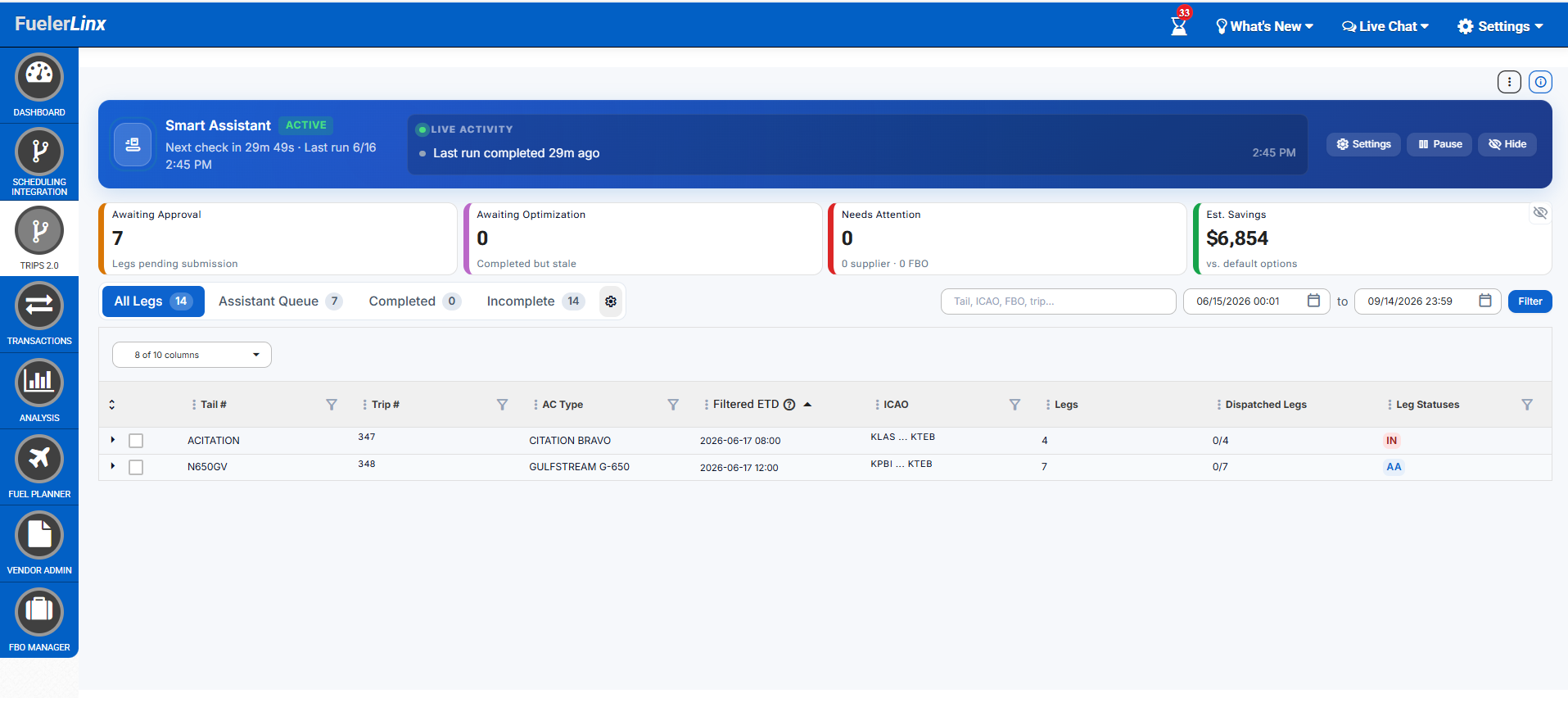
The Smart Assistant dashboard features a brand new layout that allows you to quickly and easily view upcoming legs that need attention. The dashboard includes the following features:
KPI Cards:
- Awaiting Approval: the number of legs where tankering has been run by the Smart Assistant, but require dispatch approval
- Awaiting Optimization: the number of legs where the fuel order was already placed and finished, but the flight schedule has since changed — so the fuel choice may no longer be the best one.
- Needs Attention: the number of legs that have an FBO or Supplier Mismatch. This indicates that the FBO or Vendor selected may vary from your typical selection or preference.
Trip Categories:
- All Legs: each of the upcoming legs on your schedule
- Assistant Queue: the upcoming legs 'Awaiting Approval'
- Completed: legs that have been fully processed by the automation system and dispatched by your team
- Incomplete: legs that have not been dispatched by your team
Within the Smart Assistant banner, you can adjust the feature settings, please see below:
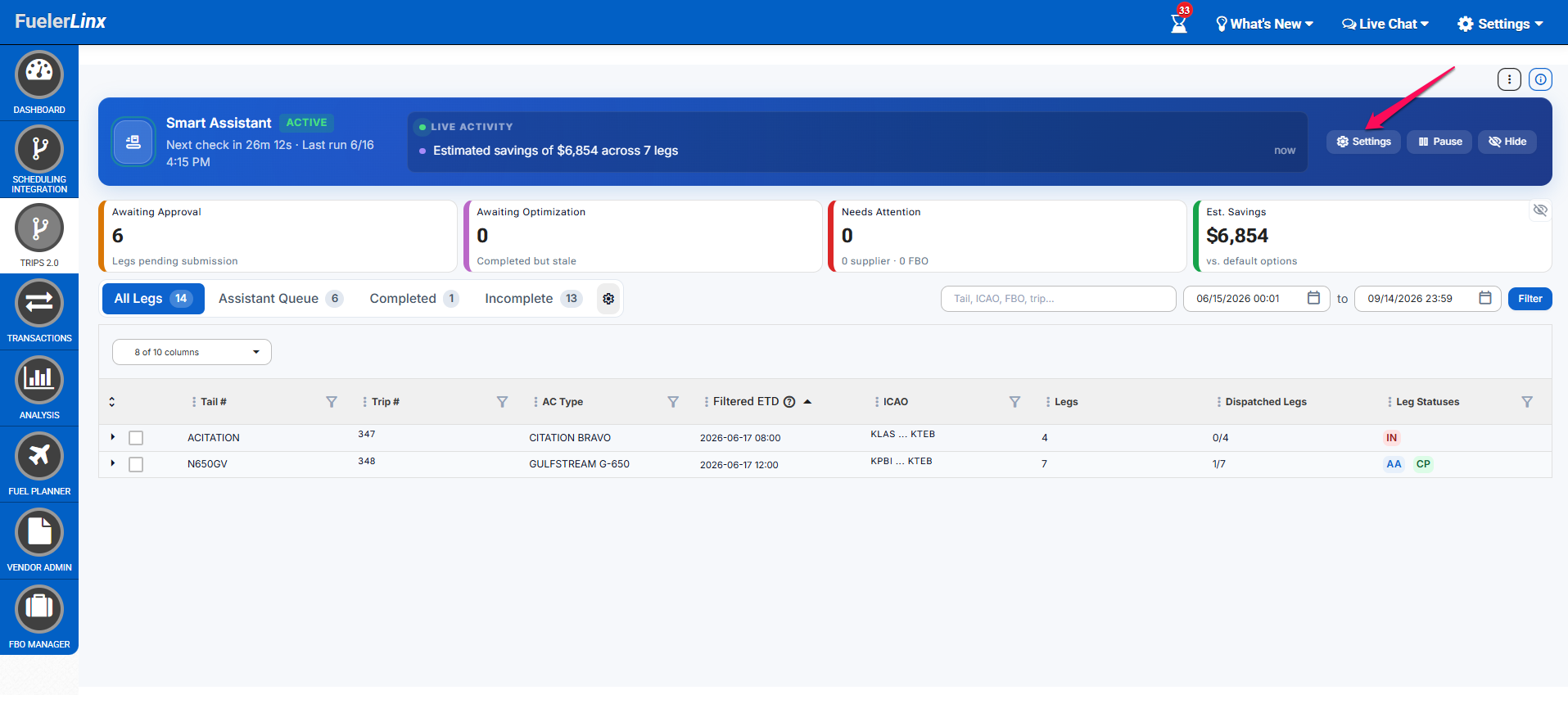
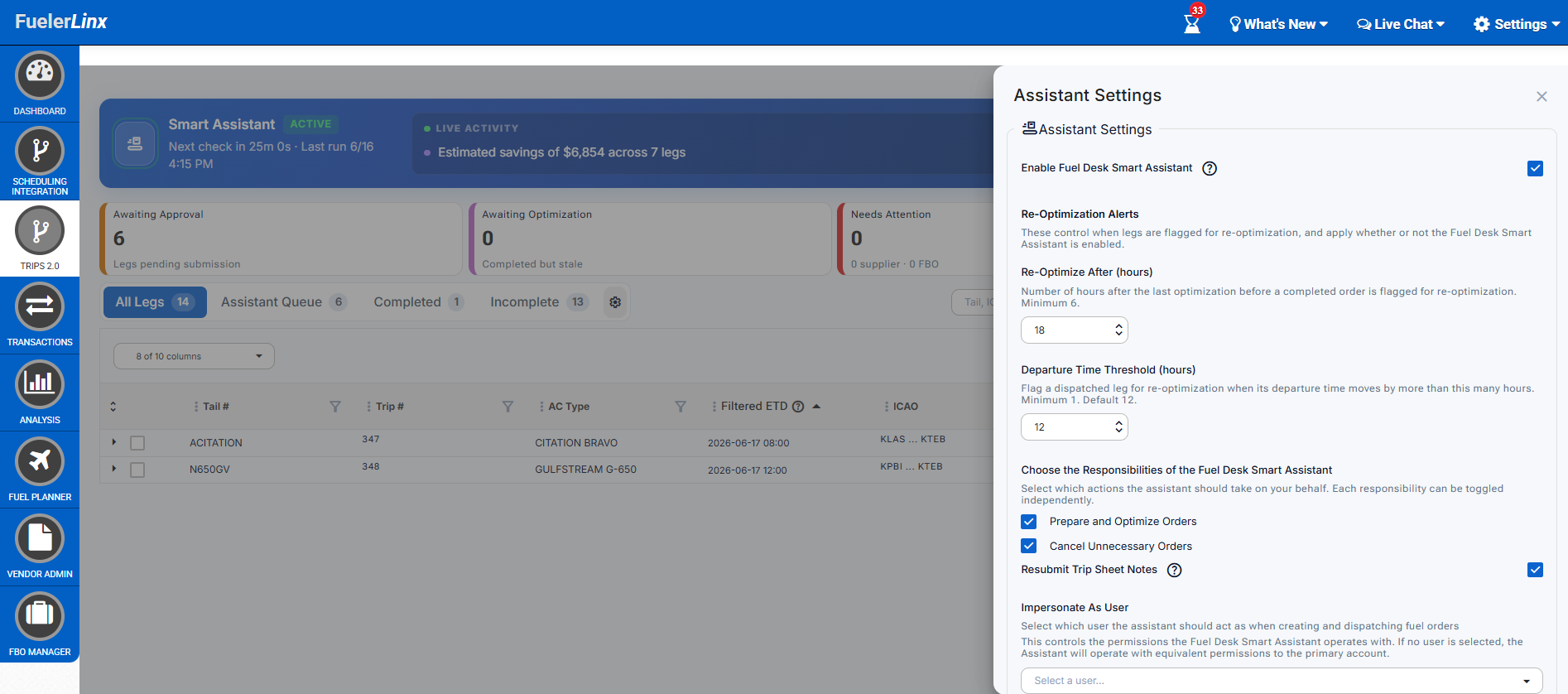
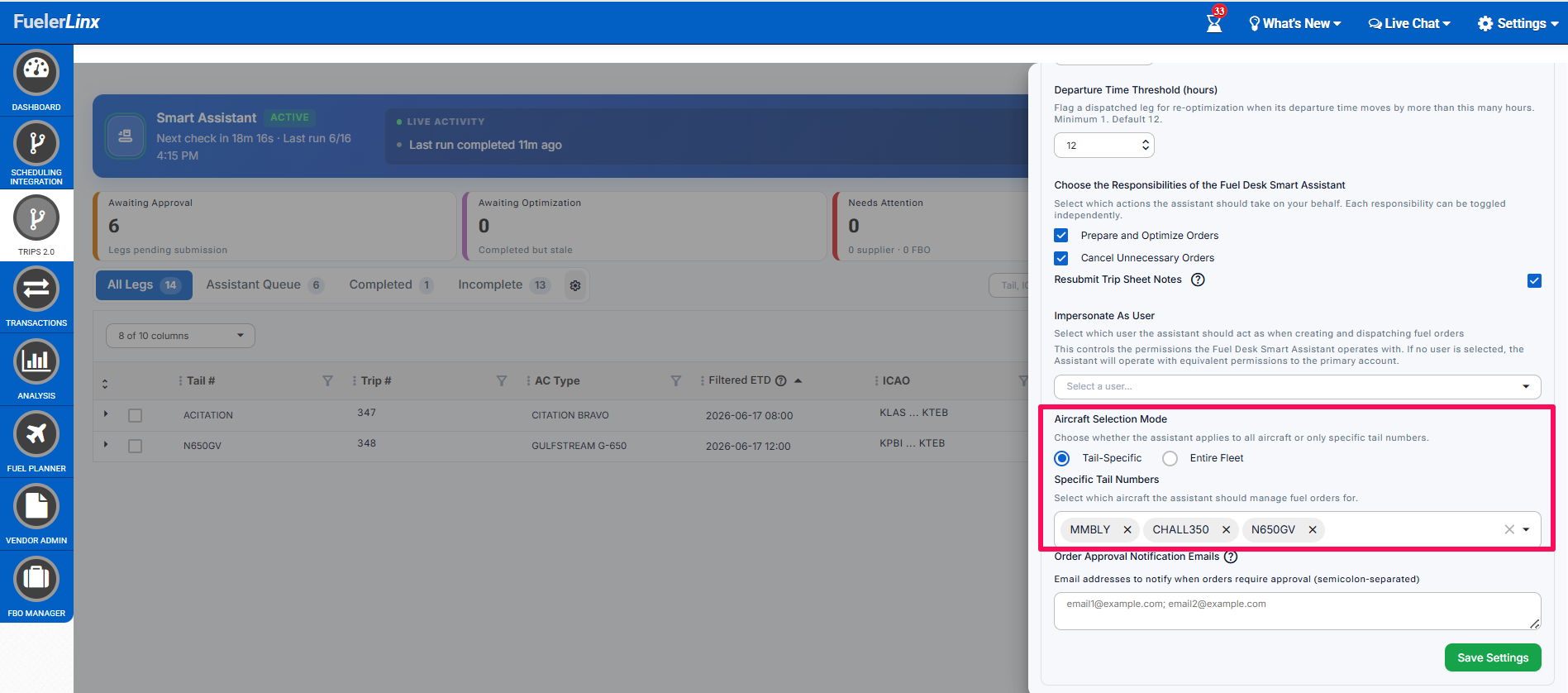
Please note, within the settings you can choose which tail numbers you'd like the Smart Assistant to automatically run tankering for, please see below:
Once you've adjusted the settings to include the desired tails, you can navigate to the 'Assistant Queue' tab to view the automated quoting and tankering recommendations for the upcoming trips on your schedule that have not been dispatched yet. Select the carrot beside the trip of interest to view the tankering calculation logic and specifics. If all looks good, you can select 'Approve' to dispatch the trip as suggested:
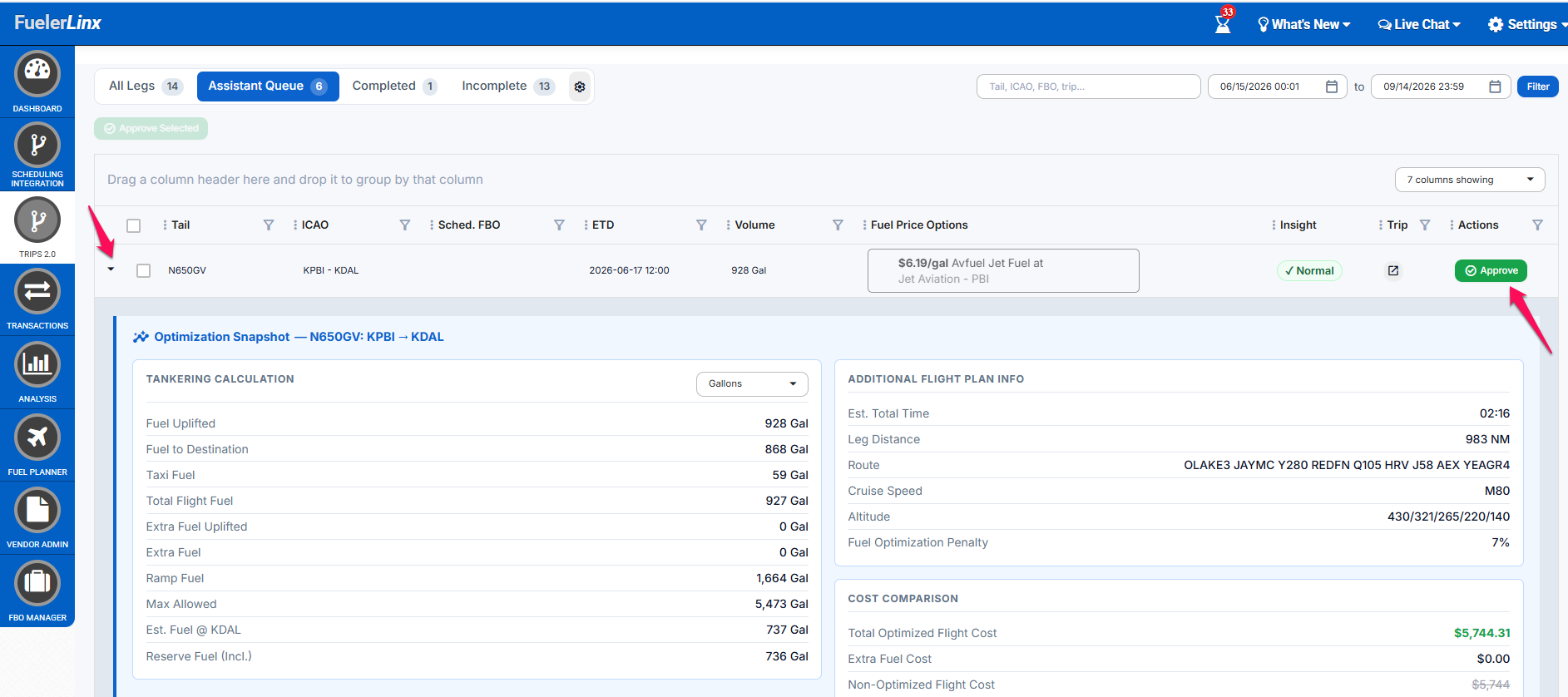
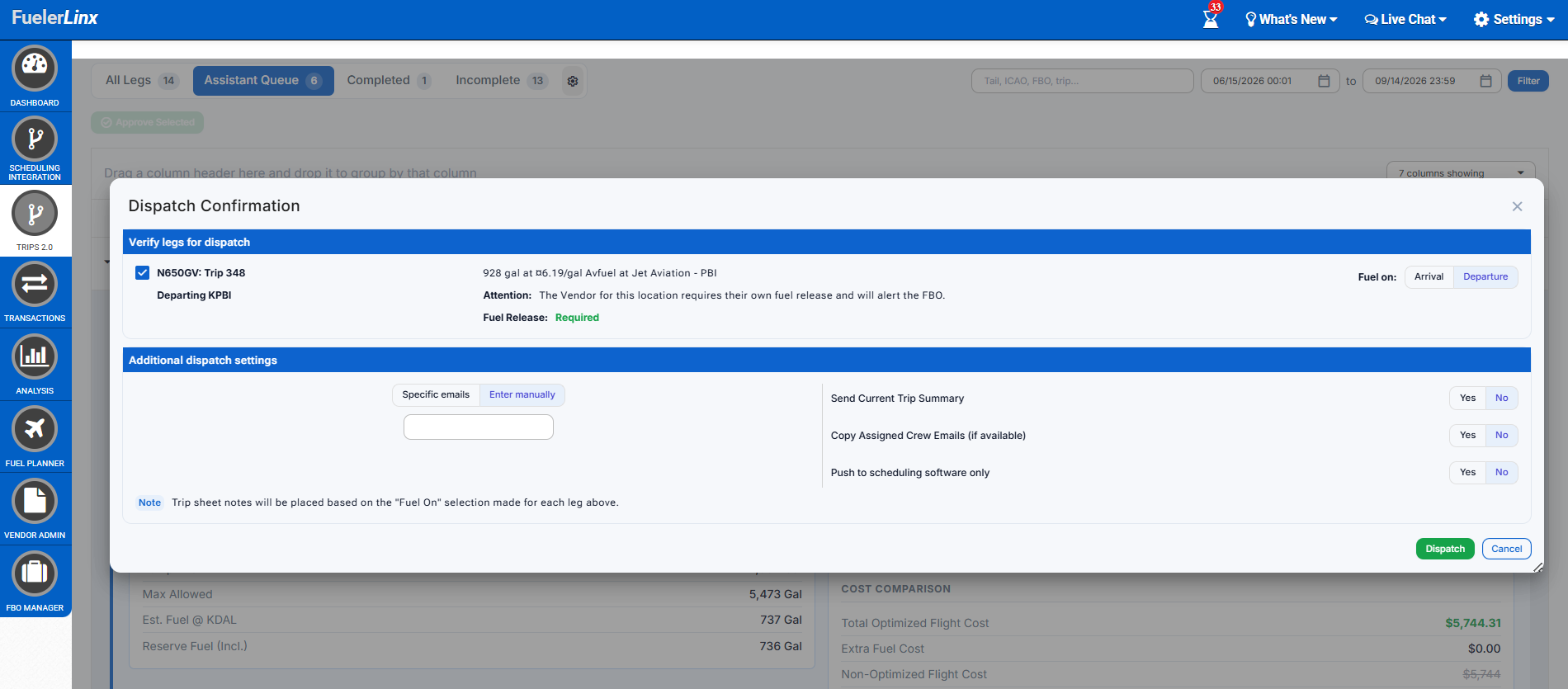
Once you've adjusted the settings to include the desired tails, you can navigate to the 'Assistant Queue' tab to view the automated quoting and tankering recommendations for the upcoming trips on your schedule that have not been dispatched yet. Select the carrot beside the trip of interest to view the tankering calculation logic and specifics. If all looks good, you can select 'Approve' to dispatch the trip as suggested:
Within the various Trip Category tabs, you'll notice a new column called 'Leg Statuses'/'Dispatch Status' which will indicate the current standing of each leg to help users identify legs that may need attention, please see below:
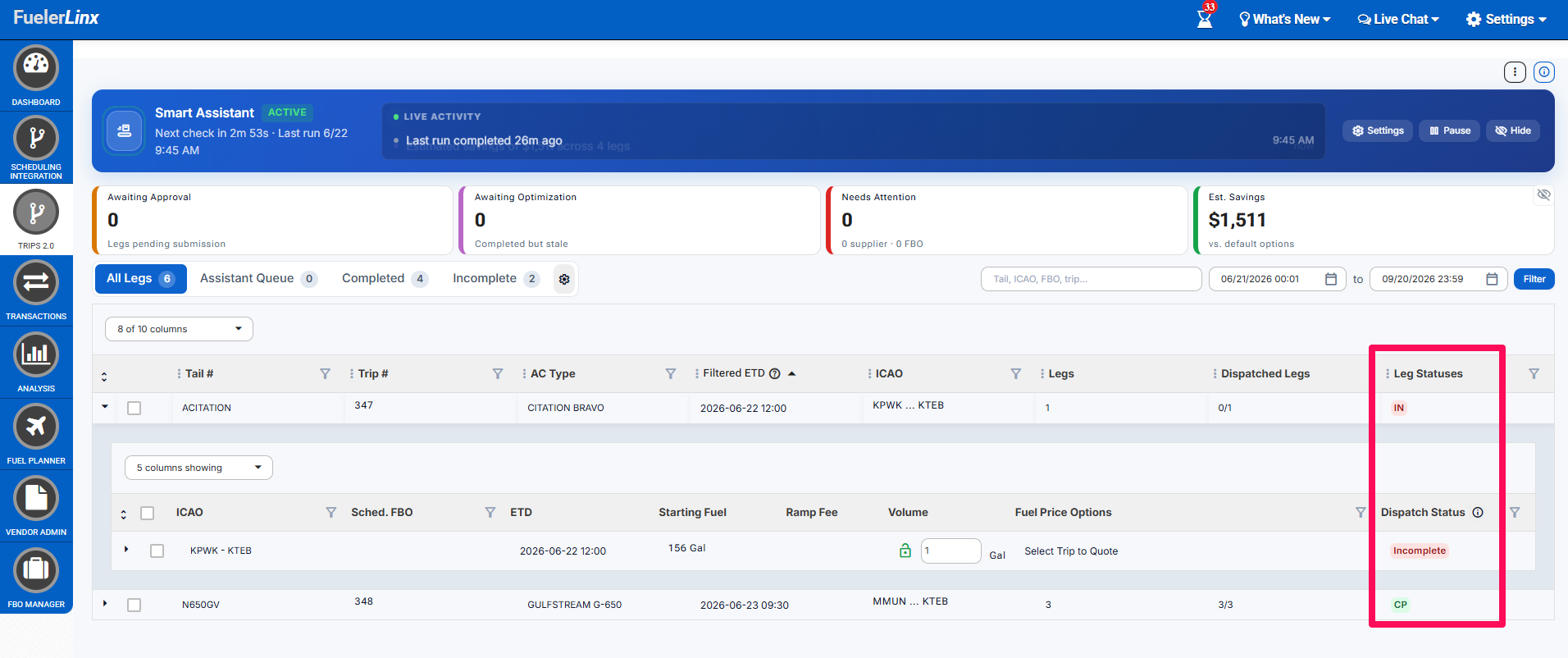
The Dispatch Status will apply based on the following criteria:
- Re-Order: The placed order no longer matches the current schedule and needs to be cancelled and re-placed.
- FBO Mismatch: The leg was fueled at a different FBO than the one scheduled.
- Supplier Mismatch: Legs leaving the same airport were ordered inconsistently.
- Awaiting Approval: An automatically-created order is waiting for someone to approve it.
- Re-Optimize: The order is placed, but the schedule has since changed.
- Complete: A fuel order has been successfully placed for this leg.
- Pushed to Scheduling: Sent to the scheduling system only — no fuel was ordered.
- Filler: A connector leg added to bridge a gap.
- Incomplete: No order has been placed yet.
If you'd like to schedule a TEAMS screenshare with our Support team to review the feature capabilities, please feel free to schedule a time that works best for you via the following link: FuelerLinx Support
Related Articles
FuelerLinx USER GUIDE How to change your password
SUBJECT: How to change your password After logging onto your FuelerLinx webpage from www.FuelerLinx.com, continue to the Settings>Account Profile option from the dropdown menu. Once the pop up box is showing the user specific details, scroll to the ...FuelerLinx USER GUIDE - Tankering Basics
SUBJECT: Basics of Tankering First step, select or build a trip you’d like to run a multi-leg tankering calculation on. Once selected/built, select “Get Fuel Quote” Pricing will appear as normal, and instead of simply selecting the “Dispatch Fuel” ...FuelerLinx USER GUIDE - How to Utilize the Fuel Map in Mobile 3.0
SUBJECT: How to Utilize the Fuel Map in Mobile 3.0 The Fuel Map module allows mobile users to locate an airport (by using the devices current location or search capabilities) in order for users to quickly review the fuel prices, services, and fees. ...FuelerLinx USER GUIDE - How to Force Refresh Fuel Pricing
SUBJECT: How to Force Refresh Fuel Pricing Within the Dashboard or Scheduling Integration click the yellow menu button > Select 'Refresh Fuel Pricing' (this will force the system to do a fresh pull for most up-to-date pricing): Note: Pricing should ...FuelerLinx USER GUIDE - How to tell if a Fuel Vendor requires a Fuel Release
SUBJECT: How to tell if a Fuel Vendor requires a Fuel Release Go to the 'Vendor Admin' > Expand the Vendor details > Check the 'Requires Release' section to determine if the vendor requires a fuel release or not: Note: If 'Yes' appears, then that ...